
Packaging PDF recovery / Production artwork
Recover dielines, white ink and varnish from a PDF
Get the cut line, white underprint and varnish artwork out of the composite and into separate files. The Aster example shows each production part in place, so you can see exactly what you need to recover.
One label. Three different production jobs.
The printed artwork is only one part of this label. Varnish marks the shapes that receive a clear finish. White supplies an underprint below the color. Die cut marks the cutting boundary.
Start with Varnish below. Switch it off and on: the transparent highlight follows the wordmark and leaves, while the printed label stays visible. Then compare White and Die cut on the same artwork.
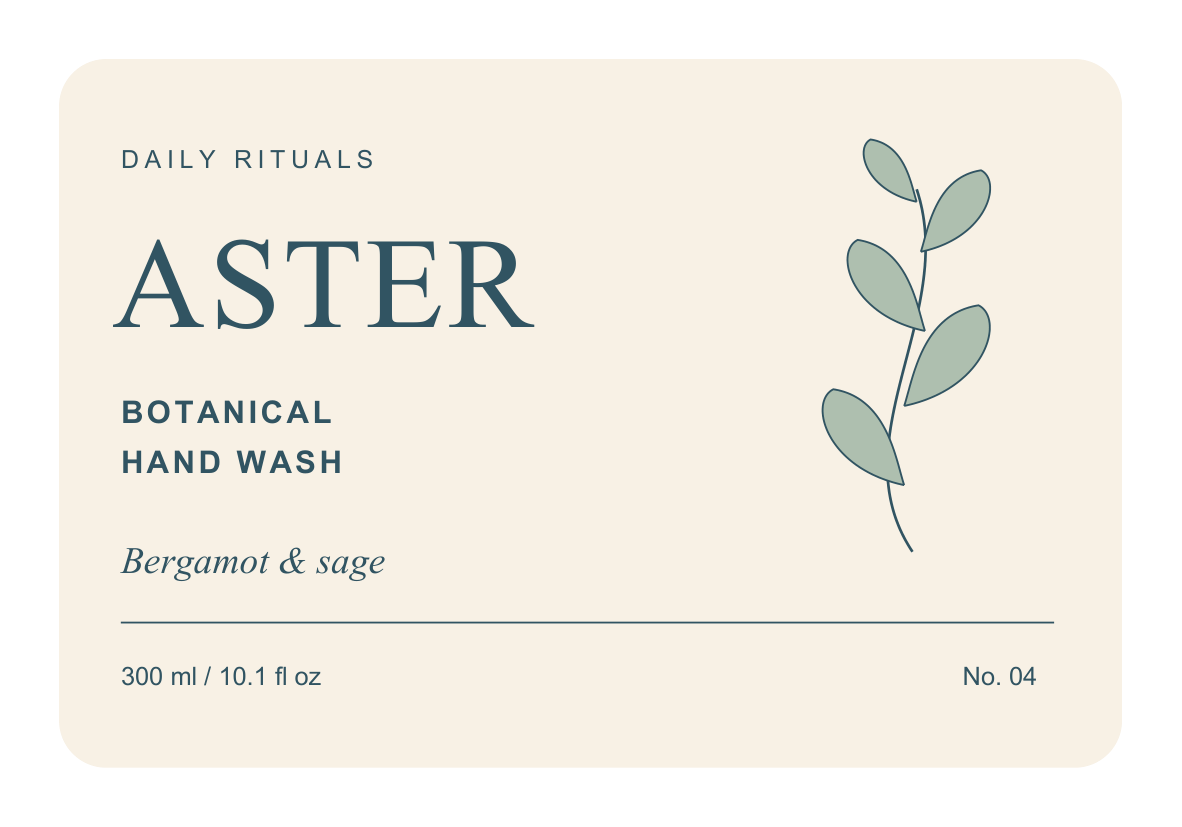
This is our self-owned Aster test, not client artwork. The label PDF contains five groups: Print, White, Varnish, Die cut and Info. Its stored default has Varnish switched off. The web demonstration starts with that recovered mask highlighted so you can see where it belongs.
Recover the stored parts before tracing them again.
A PDF can still contain the finishing artwork even when Illustrator opens it under one layer. Check the PDF groups and their contents first. A hidden Varnish group may contain a useful mask; a White group may be covered by Print.
We processed this Aster file and recovered five separate PDFs. The Varnish output contains the ASTER wordmark and the six botanical paths shown above. Every output keeps the original 100 × 70 mm page and its object positions.
Open the actual separated files
Download the five separated PDFs, the Illustrator import script and the technical reports together. Use the separated varnish, white and cut artwork for your next Illustrator handoff.
Keep the visual explanation separate from the press setup.
The violet overlay above helps you inspect the coating area without hiding the design. In the downloadable file, the same geometry uses the Varnish spot ink at full tint with overprint. Its production artwork has not been made partially transparent to achieve the screen effect.
Ask the production provider whether it needs separate finishing PDFs or a composite file with named spot inks. Use the recovered parts in that format at their original page size, and confirm overprint, stacking and which technical marks must be excluded before delivery.
For importing the package, keeping linked files together and embedding the required artwork, follow the Illustrator package import guide. Use the Acrobat diagnostic guide for the initial group check.
If the group is missing, check the actual objects.
A magenta line inside Print stays with Print during group extraction. A spot ink name does not by itself create an independent PDF group. If the shape is still a vector, it may be isolated in the editing workflow. Ask for a better export when the technical parts need their own groups.
Ungrouped content may appear alongside several separated outputs, so check for repeated job notes and cut lines. If the page is only an image, request source artwork or assess reconstruction separately. Follow the lost-source checklist for that decision.
Files, display colors and test scope
Aster is our own demonstration PDF with five layers. Its Varnish layer follows the wordmark and botanical shapes. We extracted all five layers and checked the resulting PDFs.
The demonstration aligns transparent renders of the separated PDFs at their original positions. White is shown in white; a translucent violet highlight marks the varnish geometry; the cut line and Print use their rendered colors.
Varnish starts hidden in the source. Its recovered PDF was checked for page dimensions, matching finish paths, full-opacity spot content and overprint flags. The downloads contain the source and separated production groups.
Adobe explains overprint and its preview and printing transparent artwork. Confirm the actual finishing setup with the provider.