
Lost source files / PDF editability
Only have the PDF? Check what is still editable.
Find the shortest route to the edit you need. Compare the PDF's groups, text, paths and images, then choose the useful content to work with instead of starting the whole job again.
The page appearance does not tell you what is left.
You need to change an old label, brochure or drawing, and the editable source has gone missing. The PDF still looks right. Whether you can reuse it depends on how it stores the content: named groups, individual text and vectors, or a page image.
Start with what the PDF gives you: stored groups for separation, live text for text edits, vector paths for shape work and images for image-based changes. Choose the shortest route to the edit you need.
For this example, the job is an edition update to a studio publication: reuse the graphic, change text and keep the parts manageable. We made the Field Notes layout below as a self-owned PDF with real type and vector artwork.
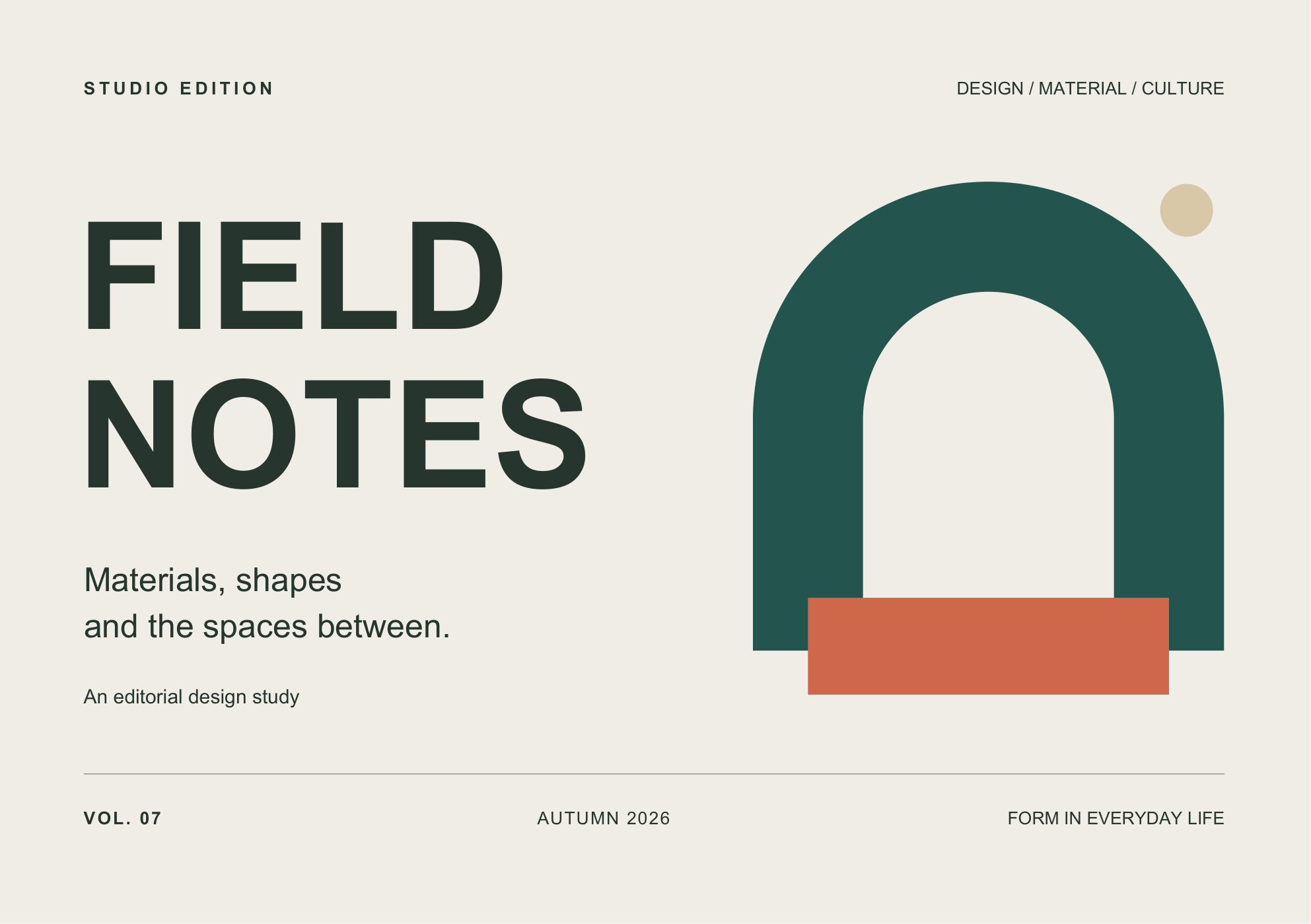
Three files. Three different editing situations.
We kept one copy with its groups, removed only the group markers from B, and made C image-only. The views below show an actual separated group, a live-text detail, and the same detail as pixels. Each answers a different editing question.

Source copy A / before extraction
A. Isolate the artwork
- PDF groups
- 4
- Vector paths
- 5
- Words stored as text
- 38
- Images
- 0
Separate the stored group when independent artwork is the required result.
Open the separated Artwork PDFC contains one image, with no original vector paths or live text. The enlarged title exposes the change in structure that the full page can hide.
Match the method to what survived
Choose the smallest job that gets the required edit done.
Recover the organization you still have.
When the needed text, artwork or technical parts are stored in separate PDF groups, extract them and skip the manual selection and sorting. Copy A produces four PDFs, giving you the stored group content in separate files.
Start with the recovery methods guide. For a cut, white and varnish example, see the dieline, white and varnish guide.
Edit the objects. Reorganize only what needs separating.
B retains the original paths and text but has no extractable groups. Test the required change on a duplicate in the receiving editor before scoping a redraw; the inventory shows what survived, and the trial shows what the next person can edit.
Existing text may need its font, and an editor may interpret clipping, transparency or grouping differently. Compare the result with the untouched PDF. The absence of a Layers list does not settle those editing questions.
Find source artwork or scope the reconstruction.
You can reuse the image if the required result allows it, but a text change or shape edit may require rebuilding that part. Ask for the original document, an earlier export, linked artwork or a vector logo before tracing the entire page.
OCR can help recover text characters. It does not restore the original type layout, vector paths, named groups or live effects. A searchable scan can still be an image-based page.
Real PDFs can mix these states on one page or across several pages. Inspect the exact area you need to change, rather than assigning the whole document to one category.
Recovery stops where the saved information stops.
A PDF group is not the original layer tree.
Useful PDF groups can separate the saved page objects without restoring the original authoring layer tree. Check the source file or Illustrator editing data first; the PDF and Illustrator layer comparison explains that distinction.
Outlined letters are shapes. Rasterized letters are pixels.
Use the PDF editability checks to distinguish stored text, outlined lettering and images, then test the required edit in the receiving editor.
Hidden content is not guaranteed to survive.
Copy B retains the original drawing commands while removing their group markers. It lets you compare object editing with group recovery. When using Acrobat's Flatten Layers command, check hidden content first: Adobe's documented flattening behavior discards content hidden in the flattened copy.
Define the change before choosing a conversion.
Keep the original PDF untouched, work on a duplicate and ask for the best surviving source. Use this four-point record to agree what the next person needs to change:
- Requested edit. Record the page, object and exact change, plus the parts that must stay the same.
- Surviving content. Note useful groups, text, paths and image-only areas in that part of the PDF. Use the Acrobat checklist for group inspection.
- Trial result. Try the required edit on one representative page in the receiving editor. Compare type, color, clipping, transparency and dimensions with the untouched PDF.
- Reconstruction scope. Identify missing content to rebuild, source assets or fonts to obtain, and what will be delivered as existing artwork.
Agree the deliverable as separated group files, a tested correction to existing objects, or a reconstructed layout. Record any source artwork, fonts or other files needed to complete that handoff.
Test files, method and references
Field Notes was designed for this guide on 20 October 2026 as a self-owned editorial PDF with embedded type and vector artwork. Its Paper, Artwork, Typography and Edition details groups were assigned programmatically. Copy B removes the group markers and definitions while keeping the drawing commands. Copy C places a 150 dpi CMYK raster on the same page. Neither copy was exported or flattened in a desktop application.
The local engine produced four separated PDFs for A. B and C contain no extractable groups, so they demonstrate the object-editing and reconstruction routes. The render, inventory, input hashes and engine outcomes are included in the measurements download.
The original design is shown once. A's inspection view comes from the engine-separated Artwork PDF. B shows a 900 dpi render of the live title. C shows pixels from the embedded image, enlarged sixteen times at the upper-left F. The ZIP contains the three variants and the separated Artwork PDF.
Adobe references checked on 20 October 2026: Illustrator PDF options and Acrobat layer merging and flattening.