
PDF to Illustrator / Deliverable check
PDF to editable Illustrator: check the edit you actually need.
Get to the edit you need: change the date, work with the wordmark or replace the photo. The ORBIT example shows the text, paths and images in the PDF and how named layers help organize the handoff.
“Editable” needs a specific task.
You have a PDF and someone asks for an editable Illustrator file. Start with the change they need to make: replace a date, recolor a wordmark, replace a photograph or switch a production group. Those requests depend on different content.
A PDF can contain live text, outlined lettering and raster images on the same page. Saving it with an .ai extension does not restore missing characters, effects, links or the original Illustrator layer structure.
If the PDF preserves Illustrator editing data and opens with the required source structure, use that result first. Adobe distinguishes preserved editing data from ordinary PDF content in its PDF documentation.
One invitation. Three different kinds of edit.
The ORBIT invitation has live date text, an outlined wordmark and one embedded photograph. Select a requested edit to see the exact part and the limit that matters for the handoff.
What needs to change?

The outline marks the selected content in the actual PDF render.
The date is stored as text.
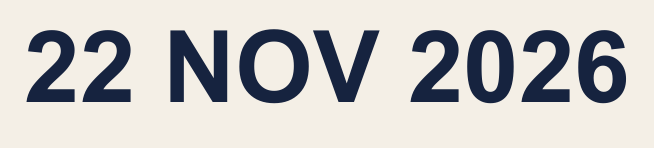
The source PDF contains the characters “22 NOV 2026”. For a date change, this is the text to inspect in the receiving editor.
- PDF group
- Schedule text
- Content found
- Text characters
Check fonts and the actual import result. Live PDF text can be split or interpreted differently when opened or embedded in Illustrator.
Open this group's PDFKeep the part you need on its own named layer and get on with the edit. Preview your PDF to see its groups and separated content.
Check your PDF freePreview free. Buy the files when you are ready.The photograph was generated for this fictional invitation. The source PDF deliberately contains one image object, real outlined glyph paths and live text so their differences can be inspected.
Named layers organize the content that survived.
ORBIT has three PDF groups: Photograph, Wordmark outlines and Schedule text. Extracting them produces three separate PDFs at the original page size. The date remains text in its PDF; the wordmark remains paths; the photograph remains pixels.
PDFLayerExtract supplies separated PDFs and an Illustrator import script. The script places the files on named Illustrator layers. They initially contain linked PDFs. When an edit requires individual paths or text, inspect and embed the relevant placed PDF, then check what Illustrator creates.
The package organizes the separated PDFs on named Illustrator layers. Use the import guide to run the script, keep the linked files together and embed them for the handoff. The separate-file reference explains the delivered files and their page positions.
Check its font and Illustrator import result.
Moving shapes differs from changing their spelling.
Its pictured objects do not become editable shapes.
If the PDF has no useful groups, extraction cannot recover that missing organization. Individual vectors or text may still be usable through direct editing. Use the PDF editability guide to distinguish that case from an image-only file.
Agree what the next person must be able to change.
A useful instruction is specific: “I need to change the date and move the wordmark. The photograph can stay embedded.” Check those operations in the delivered document before accepting the handoff.
- For a text change, check the required characters, fonts and actual text objects after import.
- For an artwork change, check whether the objects are vectors, outlined lettering or pixels.
- For a layer change, check that the named layer controls the right content on the right page.
- For original source behavior, request the native source and its dependencies. A PDF-only handoff cannot guarantee that behavior.
The paid package makes sense when its surviving groups reduce the manual organization your job requires. Check the separated result and file-specific price before deciding to buy.
How this example was checked
The original ORBIT invitation was created on 21 October 2026. Its wordmark was drawn from real font outlines, its date uses PDF text operators and its photograph is one 1536 × 1024 pixel image. The source contains three optional-content groups and no preserved Illustrator editing-data entry.
The PDFLayerExtract engine produced three output PDFs at the original page size. Their text, path and image content was rechecked. Recombining the renders reproduces the source within the recorded edge-rendering tolerance.